How AI Photo Search Works: A No-Device Lesson

Picture this: it’s a Saturday afternoon, not Sunday evening — you’re scrolling through three years of camera roll photos trying to find one shot of the beach trip from 2022. You type “beach” into the search bar on your phone. Half a second later, forty-three photos appear — sand, surf, a kid with a melting ice cream cone, that seagull that definitely stole someone’s lunch. You didn’t tag those photos. You didn’t sort them. The phone just knew.
And somewhere between the “huh” and locking the screen again, the question surfaces: how does it actually know? And how would you explain this to a 13-year-old who uses Google Photos every day but has never thought once about what happens in the fraction of a second between typing and results?
That question is exactly the kind of thing teachers should be teaching — and exactly the kind of thing nobody handed you a curriculum for. That gap is real. It’s not your fault it’s there. And it’s entirely fillable.
TL;DR — How does AI photo search work? When you add a photo to Google Photos or Apple Photos, an on-device or cloud-based neural network automatically tags the objects and scenes it detects — one beach photo might receive the labels “beach,” “ocean,” “sky,” “sand,” and “child” all at once. Those tags and images are converted into mathematical vectors (points in a “meaning space”). When you type a search query, your words are converted into a vector using the same system. The app returns the photos whose vectors sit closest to your query — which is why typing “coast” can surface photos labeled “beach” even if you never used the word coast. A 2021 AI model called CLIP made this possible at scale by learning text and images in a single shared meaning space.
How does AI photo search actually work?
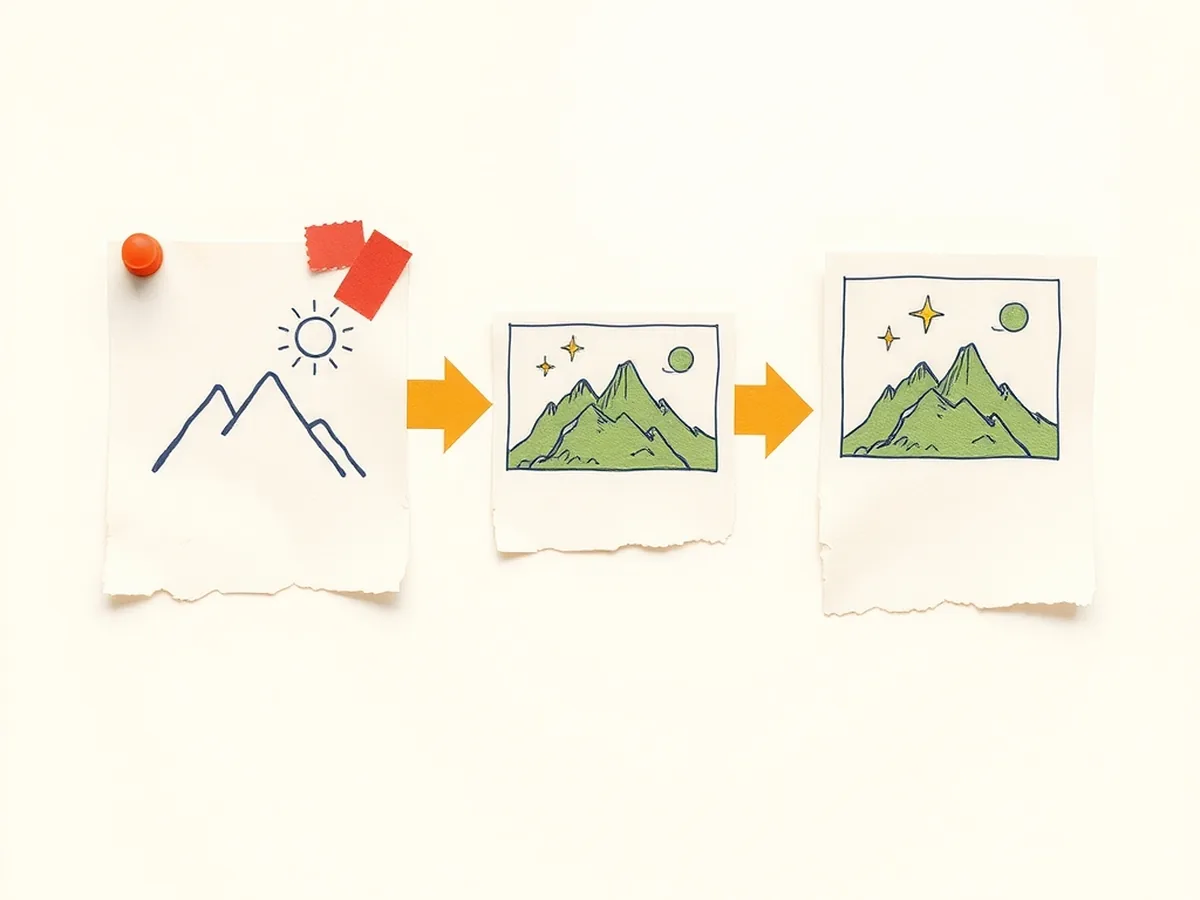
Photo search runs on a four-step pipeline — and every step is teachable without a single line of code.
Step 1 — Auto-tagging. The moment a photo lands in your library, a neural network scans it and applies multiple labels. One sunset photo might receive “sky,” “clouds,” “horizon,” “orange,” and “beach” simultaneously. This is called multi-label classification. The model was trained on millions of labeled images until it learned that a certain pattern of pixels — a gradient from warm to dark, a flat line at mid-frame, water texture — reliably corresponds to the concept “sunset.” Google Photos currently holds more than 9 trillion photos from 1.5 billion users (dpreview.com, May 2025) — that’s the scale of the recognition problem these models solve every day.
Step 2 — Embedding. Tags and images are converted into embedding vectors: lists of numbers (often hundreds or thousands of them) that represent where a concept sits in a multidimensional “meaning space.” Similar concepts end up close together in that space. “Beach” and “coast” and “shoreline” cluster near each other. “Thermometer” and “gun” should be far apart — though we’ll get to why that sometimes goes wrong.
Step 3 — Query encoding. When you type “beach” in the search bar, the same kind of model converts your text into a vector in that same meaning space.
Step 4 — Nearest-neighbor retrieval. The app returns the photos whose vectors sit closest to your query vector. The closer the vectors, the higher the match score. No explicit lookup table. No hand-written rule that says “beach = sand + water.” Just geometry in meaning space.
The breakthrough that made this work across languages and image types was CLIP (Contrastive Language-Image Pre-training), released by OpenAI in January 2021 (Wikipedia — CLIP). CLIP trained on text and images together in a single shared embedding space — meaning a photo never explicitly labeled “birthday cake” could still surface when someone typed “celebration” because the vector geometry makes them neighbors. Google extended this direction further with Ask Photos, announced at Google I/O on May 14, 2024 (blog.google) and covered at launch by TechCrunch, before expanding to U.S. users later in 2024. Ask Photos uses Gemini to let you ask conversational questions about your own library — “Find photos from the camping trip where it rained” — and the underlying mechanism is the same vector geometry, extended by language reasoning.
That four-step pipeline is the whole thing. Teach the pipeline, and photo search stops being magic.
Photo search is not facial recognition
This distinction matters — and it’s worth being explicit with students before they conflate two very different systems.
Photo search is about what is in the picture: objects, scenes, activities, settings. A model trained on labeled images learns to recognize “birthday cake,” “dog,” and “crowd.” The identity of the people in the photo is irrelevant to this task.
Facial recognition is about who is in the picture: matching a face to a known identity. It uses a completely different type of model, trained on face-identity pairs, and it carries a categorically different privacy profile. Misidentifying an object is annoying. Misidentifying a person has consequences — in law enforcement applications, in access control, in surveillance contexts.
Google Photos does group similar faces together for album organization — but that grouping happens on-device and does not, by Google’s stated architecture, identify who a face belongs to without your input. The models are separate, the training data is different, and the stakes are different.
For a deeper classroom treatment of facial recognition specifically — including the documented accuracy gaps across demographic groups — the post How AI Facial Recognition Works: A Middle School Lesson Plan covers that mechanism as a standalone unit. A related mechanism worth contrasting is fine-grained species recognition: plant-identification apps like PlantNet work on image classification too, but they specialize in distinguishing one species from thousands of near-identical ones — a very different problem from generic object search. That angle is covered in How AI Plant Identification Apps Work.
Keeping these three systems distinct — object/scene search, identity recognition, fine-grained classification — is itself a teachable AI literacy skill. Students who can name the difference are thinking like engineers, not just users.
Where AI photo search gets it confidently wrong
Here’s the failure mode that makes this topic worth a full class period: these systems produce no uncertainty output. There is no “I’m not sure.” The model returns a match score, the photo surfaces, and the confidence looks identical whether the model is right or catastrophically wrong. Students need to see real examples of that pattern.
| What breaks it | Why | What students should notice |
|---|---|---|
| The “gorillas” incident (2015, still blocked 2023) | Google Photos labeled two Black users’ photos with the tag “gorillas.” The training data encoded a historical racist association between Black people and primates. Google’s response was not to fix the training data — it was to block the labels “gorilla,” “chimp,” and “monkey” entirely, a block confirmed still active in 2023. (MIT Technology Review, 2018) (PetaPixel, 2023) | Is “going silent” a fix? The label is gone. The bias in the training data is not. What question would you ask Google? |
| Thermometer labeled “gun” (Google Vision, 2020) | Google’s Vision API labeled a dark-skinned hand holding a thermometer as “gun.” A lighter-skinned hand holding the same thermometer was labeled “electronic device.” (AlgorithmWatch, 2020) | The model learned from the world’s existing photos — and those photos encode existing inequalities. What does that mean for new photos it’s trained on? |
| Small or abstract objects | A plush dog toy, a toy car, a hand-drawn doodle may not register as its real-world counterpart. The model learned from photographs of real things at standard angles. Representations of things are a different visual category. | The model has only seen what it’s been trained on. What might it have never seen enough of? |
| Filters and color distortion | Heavy photo filters shift pixel distributions far from training data. A sepia-toned “beach” photo may not surface under a beach query because the expected color signature is gone. | The model is matching patterns, not meaning. What’s the difference? |
| No “I don’t know” output | The nearest-neighbor search always returns the closest match, even when the closest match is very far from correct. | What would a more honest system look like? Could a system say “I’m not confident”? |
The gorillas incident is the single best classroom discussion hook in this topic. Not because it’s the most dramatic, but because the company’s response reveals something important: when a system fails in a high-stakes way, the fix is sometimes to hide the failure, not to address it. That’s a media literacy conversation, not just a tech conversation.
On-device vs. the cloud: who actually sees your photos?
This is the section students always want to know about — and it’s also a ready-made debate activity.
Apple Photos runs its object and scene recognition entirely on-device. The photos never leave the phone for classification purposes (Apple Machine Learning Research). In iOS 18.1 (October 2024), Apple introduced Enhanced Visual Search — the ability to search by visual similarity across your library. Even this feature doesn’t send photos to Apple’s servers. It sends only an encrypted mathematical embedding — the vector representation of the image, not the image itself — so Apple can improve search matching without ever seeing what you photographed (9to5Mac, January 2025). The photo stays on your phone. The math travels.
Google Photos runs scene and object recognition in the cloud. Photos are transmitted to Google’s servers for processing — which is what enables more powerful, continuously updated models and features like Ask Photos. Face grouping happens on-device. The processing tradeoff is explicit in Google’s terms: you get stronger models; Google gets to process your images.
Neither approach is obviously wrong. They reflect genuinely different choices about where to draw the line between capability and privacy.
Classroom debate / grid activity: Give students a two-column grid — “on-device” vs. “cloud” — and four criteria: model accuracy, privacy protection, data access if your phone is stolen, and what happens when there’s no internet connection. Students fill in the grid individually, then compare with a partner before a full-class debrief. A typical class finishes the grid comparison in about 15 minutes — the debrief is where the interesting disagreements surface.
This is precisely the kind of question no one handed teachers a framework for — and precisely the kind of question students are already living with every day.
A no-device lesson: “Be the Photo Classifier”
The goal of this activity is to make the four-step pipeline physical and visible. Students become the neural network. No devices required. Printed image cards only.
What you need: Print 30-40 magazine-style images on cardstock (varied: landscapes, food, animals, household objects, one or two ambiguous or abstract images). Prepare label strips: “beach,” “city,” “food,” “animal,” “indoor,” “outdoor,” plus a few secondary labels like “water,” “green,” “people,” and one blank strip marked “I’m not sure.” Prepare a simple distance chart on the board showing which labels are “close” in meaning space (beach-coast-shore) and which are “far” (beach-kitchen).
Minute-by-minute breakdown:
0–5 min — Warm-up. Show one photo on the projector. Ask the class to call out every word that describes what they see. Record all of them. Explain: this is multi-label tagging. One photo, many labels. That list is what a neural network generates — automatically, in milliseconds, for every photo in your library.
5–15 min — Model the pipeline. Walk through the four steps with one image card as the class watches: (1) assign labels, (2) explain that those labels become vectors (“imagine each label is a point on a map — beach and coast are right next to each other; beach and kitchen are on opposite sides”), (3) the teacher types a “query” on the board (“I’ll write ‘ocean’ — where does that point land on our map?”), (4) the matching image card is pulled from the stack. Narrate each step aloud.
15–30 min — Students work as classifiers. Divide into table groups. Each group receives 8 image cards face-down. They flip cards one at a time, assign multi-label tags using the label strips, and record which cards would surface for the query “vacation.” Groups compare their results — do they agree on which photos match “vacation”? Where do they disagree, and why?
30–40 min — The “confidently wrong” round. Introduce 2-3 deliberately tricky cards: a plush toy dog, a thermometer, a sepia-toned beach photo. Each group must still assign a label — they cannot use the “I’m not sure” strip for this round. Debrief: what label did you choose? How confident did you feel? Now reveal the gorillas incident. Ask the discussion question on the board: “If a system gives a wrong, harmful label — and the company’s fix is to remove that label entirely rather than fix the training — is the problem solved?”
40–45 min — Standards debrief. Return to the four-step pipeline on the board. Ask: which step could be improved to reduce the “confidently wrong” outcome? Students write one sentence. This is the exit ticket.
Standards crosswalk:
| Activity step | Standard |
|---|---|
| Multi-label tagging round | AI4K12 Big Idea #1 (Perception — computers perceive the world via sensing) |
| Vector / “meaning map” explanation | AI4K12 Big Idea #3 (Learning — computers learn from data) |
| “Confidently wrong” round + gorilla debrief | AI4K12 Big Idea #5 (Societal Impact) · ISTE 1.3.b (evaluate accuracy, credibility, relevance of information) |
| On-device vs. cloud debate grid | ISTE 1.2.b (digital citizenship — rights & privacy) |
| Group card-sort discussion | CCSS.ELA-LITERACY.SL.7.1 (collaborative discussion with diverse partners) |
| Exit-ticket sentence | CCSS.ELA-LITERACY.W.7.8 (gather and assess information, integrate from multiple sources) |
| Entire pipeline inquiry | ISTE 1.3.d (build knowledge by exploring real-world issues and pursuing active investigation) |
Standards source: ISTE Student Standards. ISTE is a registered trademark of the International Society for Technology in Education. These resources are not affiliated with or endorsed by ISTE.
For the full 16-lesson arc that places this mechanism inside a year-long AI literacy curriculum, the How AI Works MEGA bundle covers every major AI mechanism from neural networks to generative models with complete teacher plans, student pages, and answer keys. For more unplugged activities in this format — card sorts, role-plays, no-device rounds — the Unplugged AI Activities collection gives you 10 ready-to-run lessons. And if the “narrow vs. general” distinction in how photo search differs from general AI has students asking bigger questions, the Types of AI Deep-Dive lesson is the companion unit.
This stuff feels like magic precisely because no one taught the mechanism. You don’t need a computer-science degree to teach it. You need the pipeline made teachable — and now you have it.
This post was drafted with AI assistance and human-finalized.
Quick questions
When a photo enters your library, a neural network auto-tags the objects and scenes it detects, then turns those tags into embedding vectors — points in a mathematical meaning space. Your typed query becomes a vector too, and the app returns the photos whose vectors sit closest to it, which is why 'coast' can surface a photo tagged 'beach.'
No. Photo search identifies what is in a picture — objects, scenes, activities. Facial recognition identifies who a face belongs to. They use different models, different training data, and carry very different privacy stakes.
It depends on the app. Apple Photos runs object and scene recognition entirely on your device. Google Photos processes scene and object recognition in the cloud but does face grouping on-device. The trade-off is capability versus how much leaves your phone.
Get the free AI-Proof Assignment Toolkit
10 ways to redesign any assignment so an AI chatbot structurally can't do it — plus a redesign worksheet, a 45-minute lesson, the “Spot AI Work” card, and parent templates. One email, all 5 pieces.
Prefer the full breakdown? See everything inside the toolkit →